Home > Adding The Care Handbook to your Home Screen
Adding The Care Handbook to your Home Screen
Written by
Noel Williams
Post created on: April 11, 2023
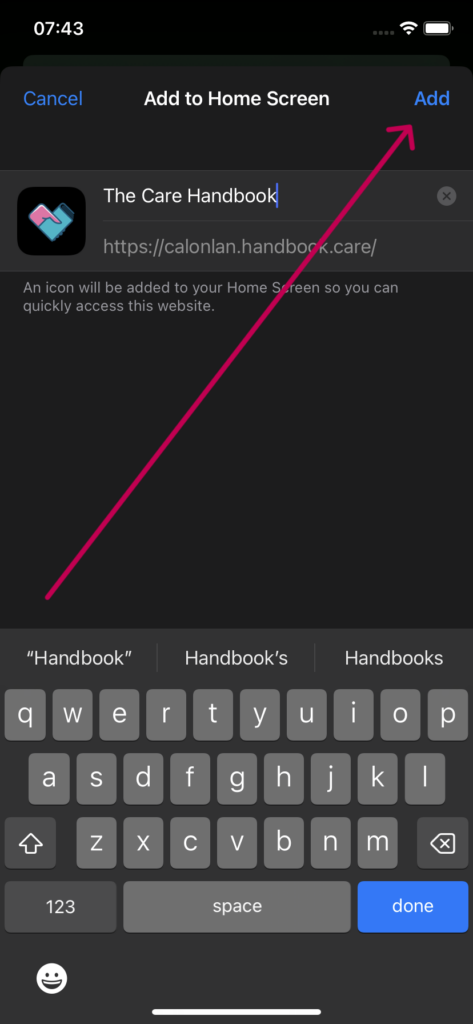
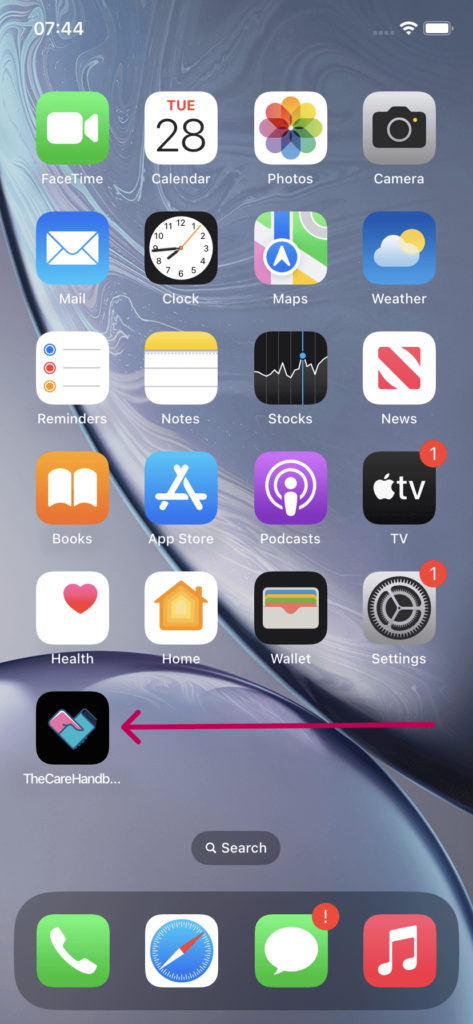
Progressive Web Apps (PWAs) offer a smoother, more app-like experience. The Care Handbook is a PWA — which means you can save it to your home screen just like a regular app.
This is known as “Add to Home Screen” (or A2HS). Once added, you can:
Open The Care Handbook instantly, without searching or opening your browser
Access important tools like your rota, training, and forms in fewer taps
Use it just like any other app on your phone or tablet
Adding it to your home screen also makes it easier to stay signed in and ensures faster loading — especially when you’re out in the community or switching between visits.
Android
For Android (using Chrome browser):
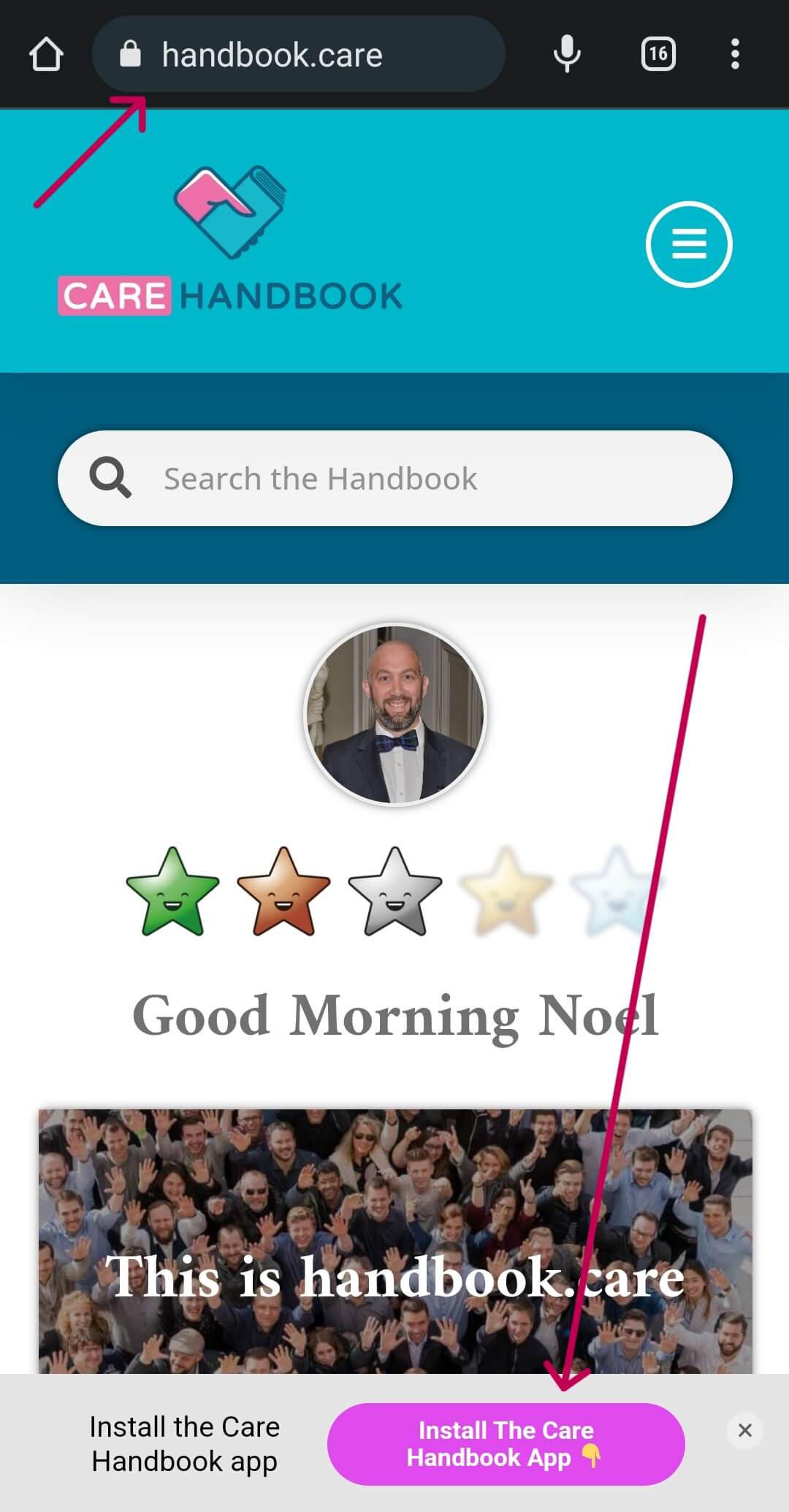
Open The Care Handbook in your Chrome browser.
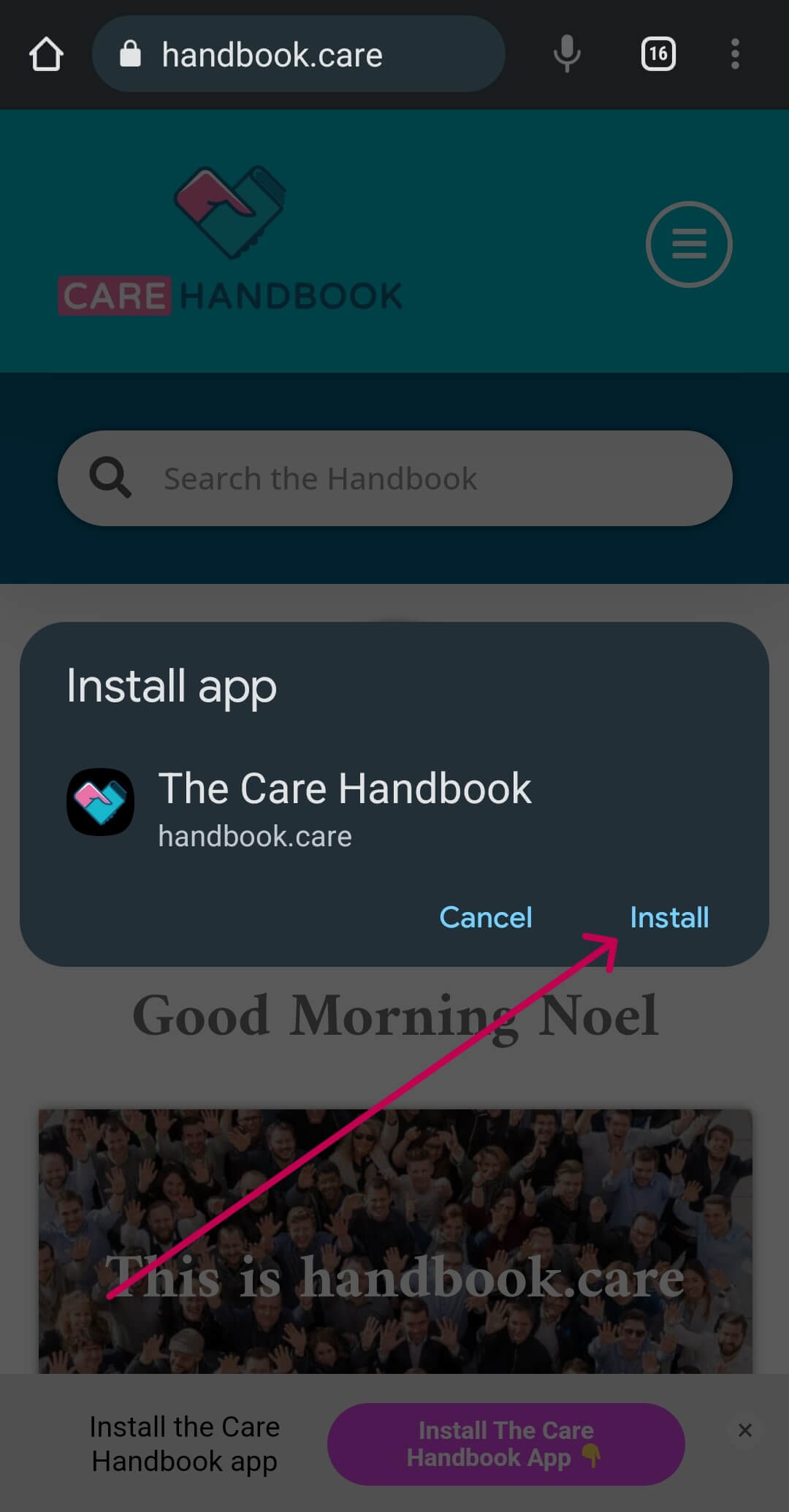
Wait a few seconds — you may see a message that says “Add to Home screen”.
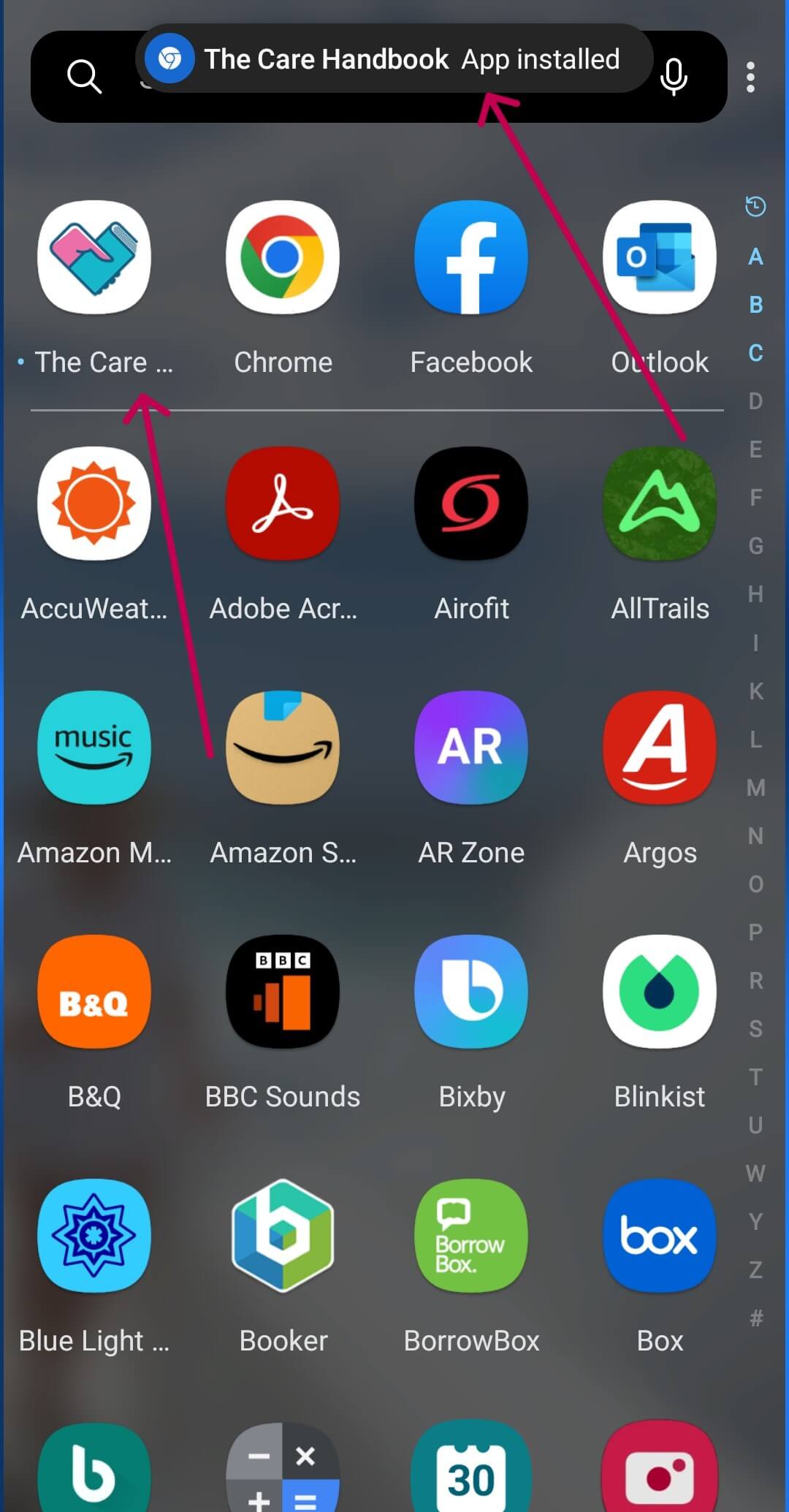
Tap that message, then press “Add”.
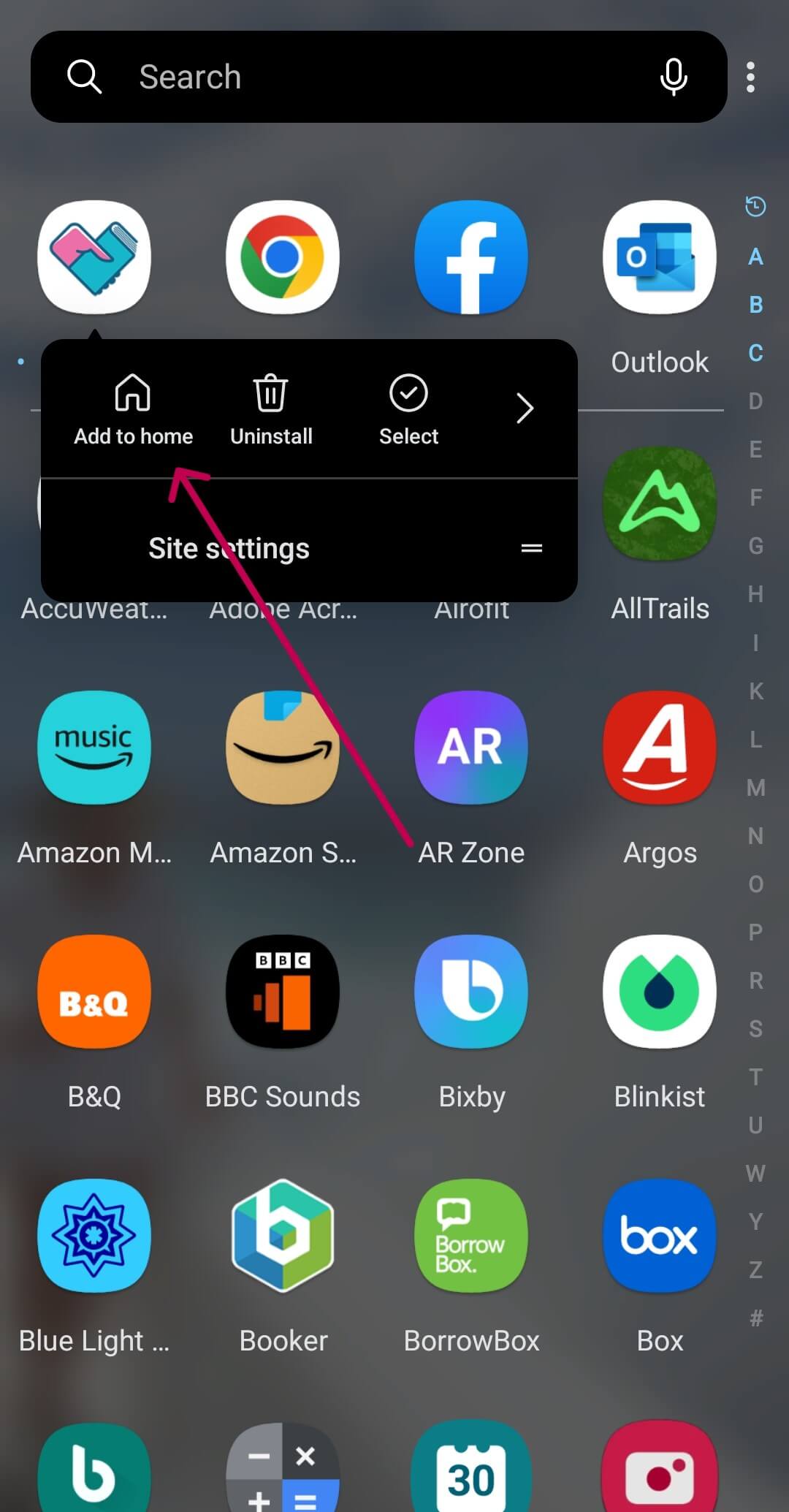
Don’t see the message?
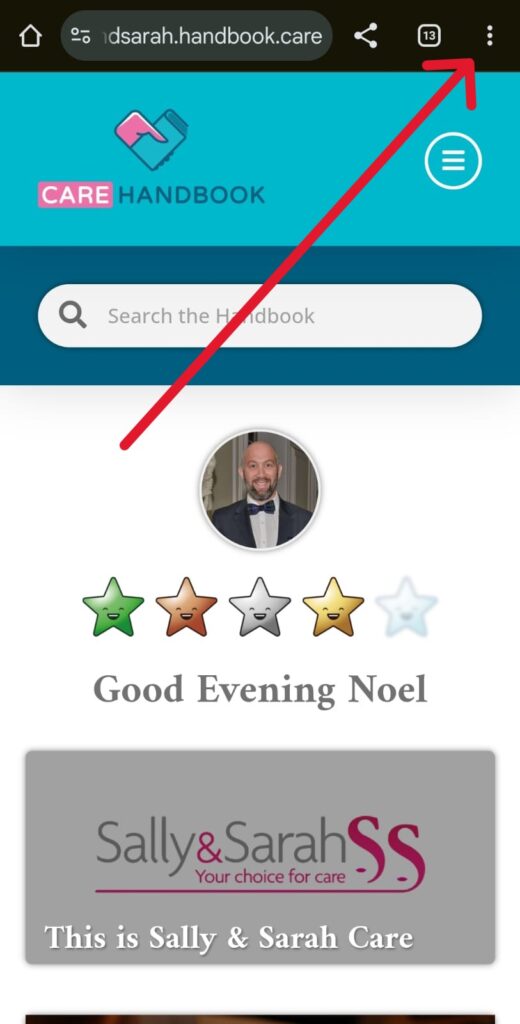
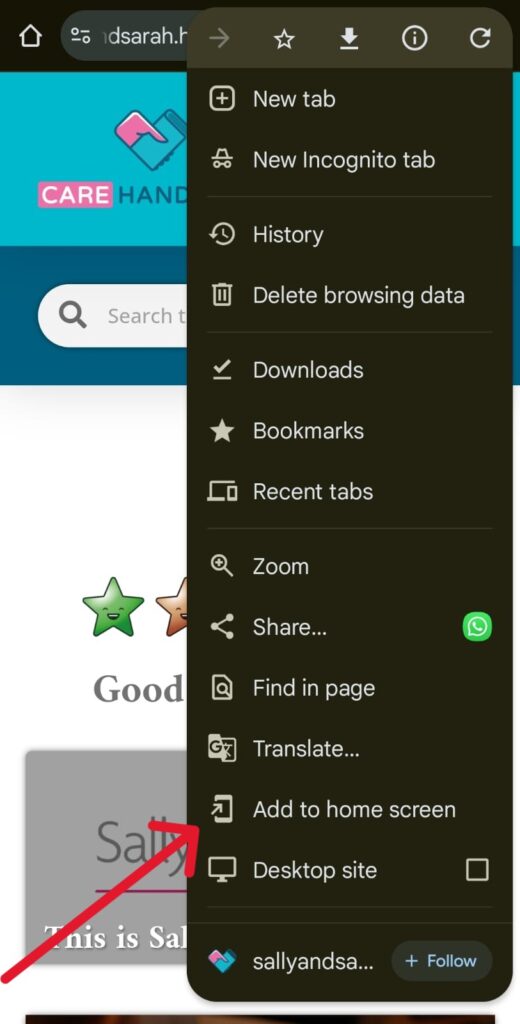
Tap the three dots (︙) in the top-right corner, then choose “Add to Home screen”.
iPhone
For iPhone (using Safari):
Open The Care Handbook in Safari.
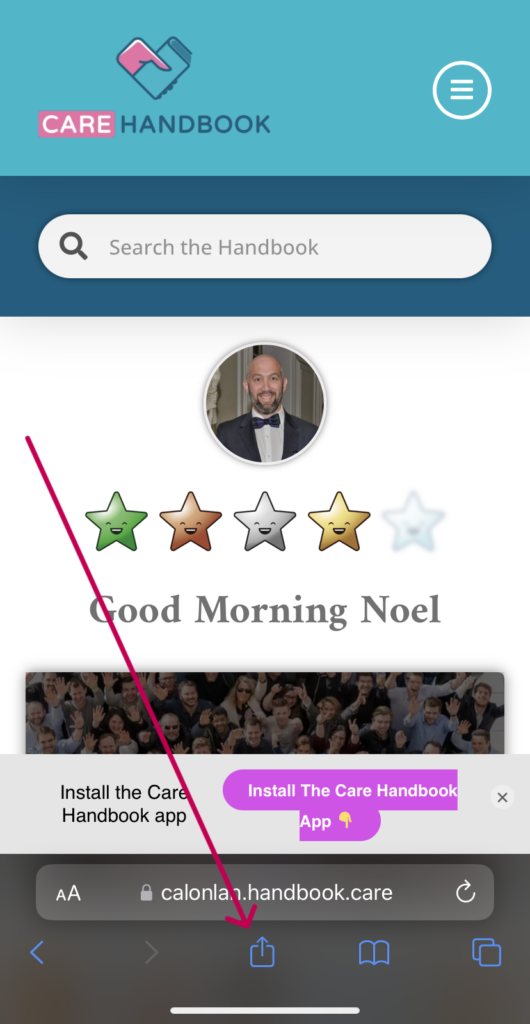
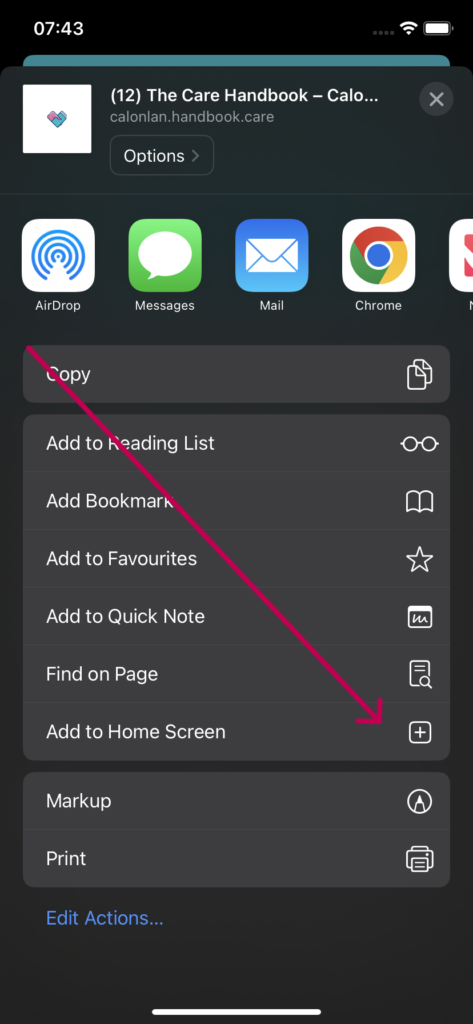
Tap the Share button (the square with an arrow pointing up).